 Smart Mouse & Keyboard · Mac and PC remote, trackpad and keyboard
Smart Mouse & Keyboard: Your Mac or PC.
In your hand.
See your computer's screen on your iPhone or iPad and control it from the sofa: click, drag, scroll, type and play music from across the room. Works with Macs and Windows PCs.
See it.
Control it.
For the Mac or PC connected to your TV, the one across the room or the one you're presenting from.
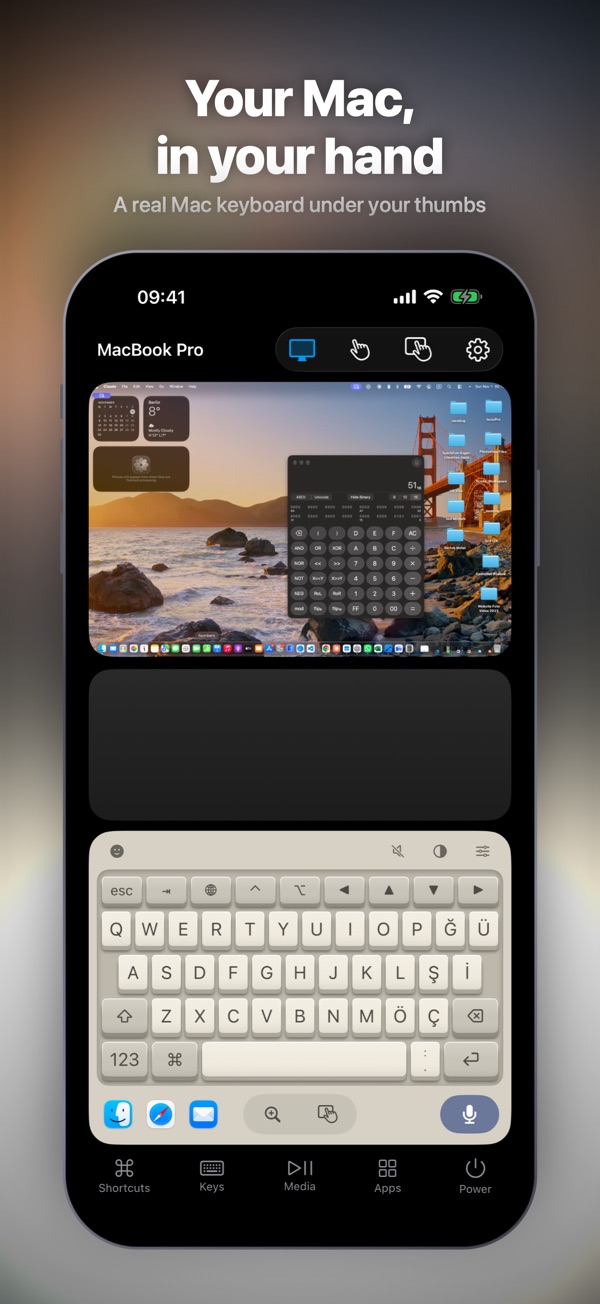
See and control your Mac
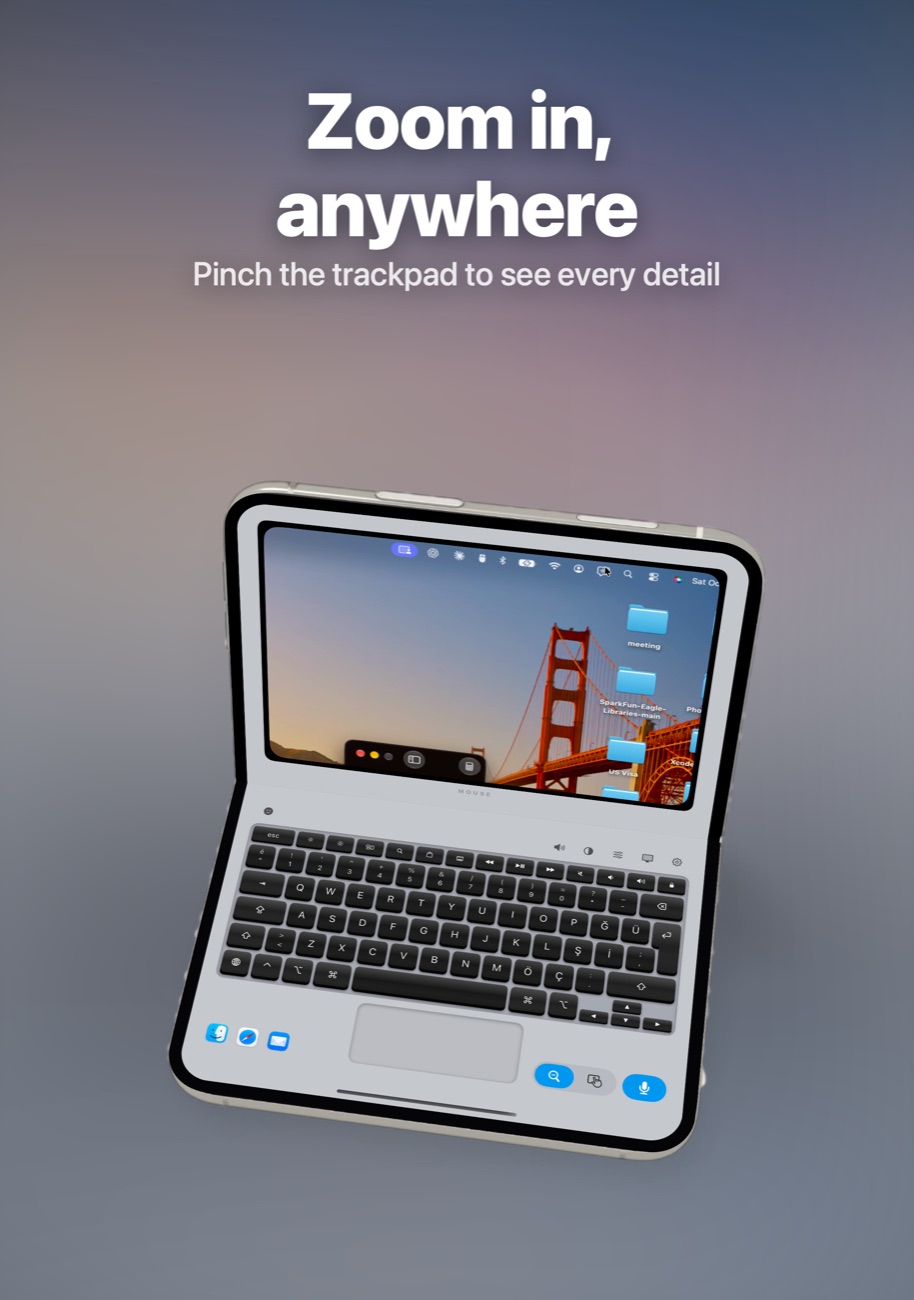
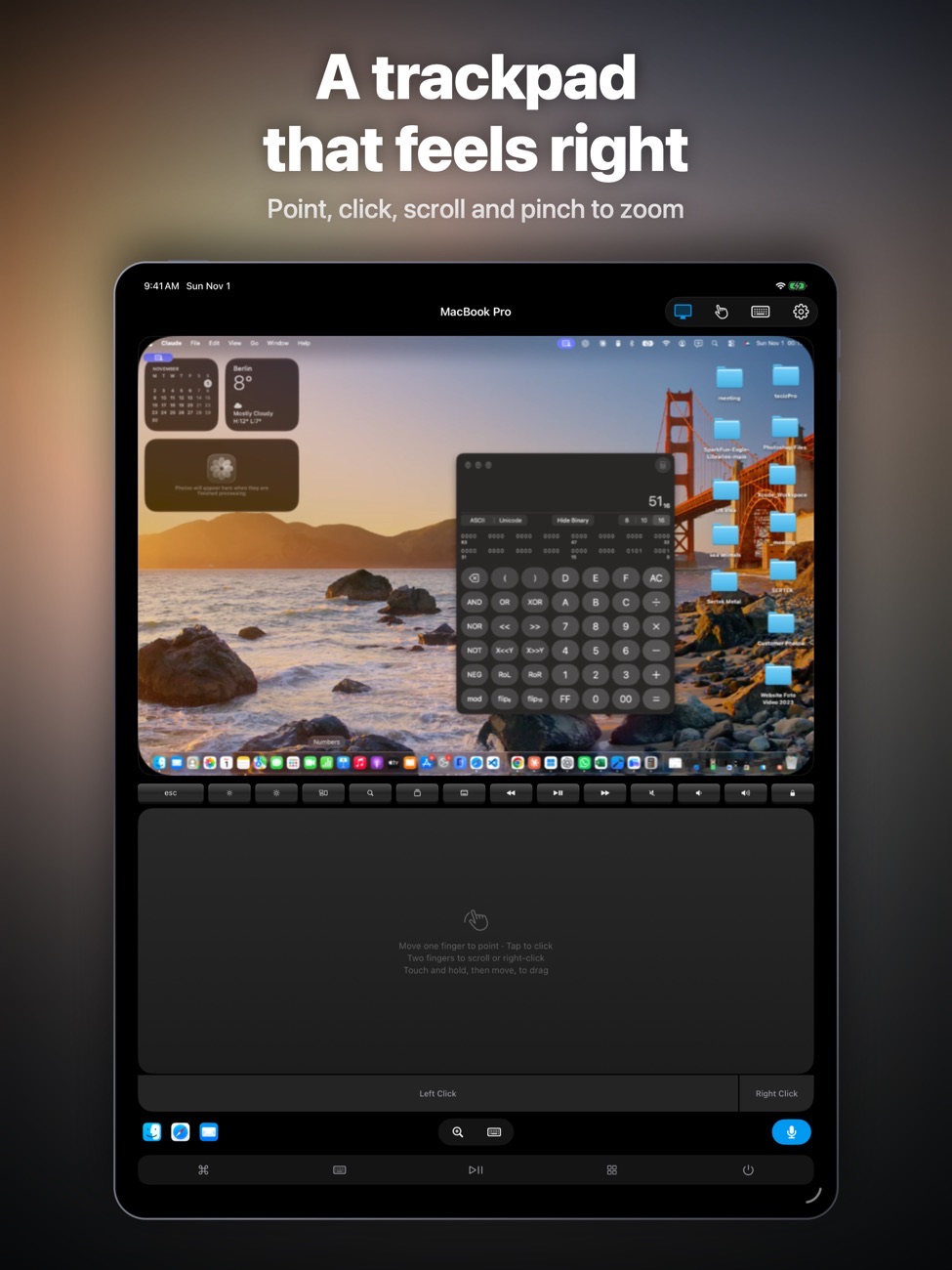
View the Mac's screen on your device. Tap to click, drag items, scroll with two fingers and pinch to zoom.
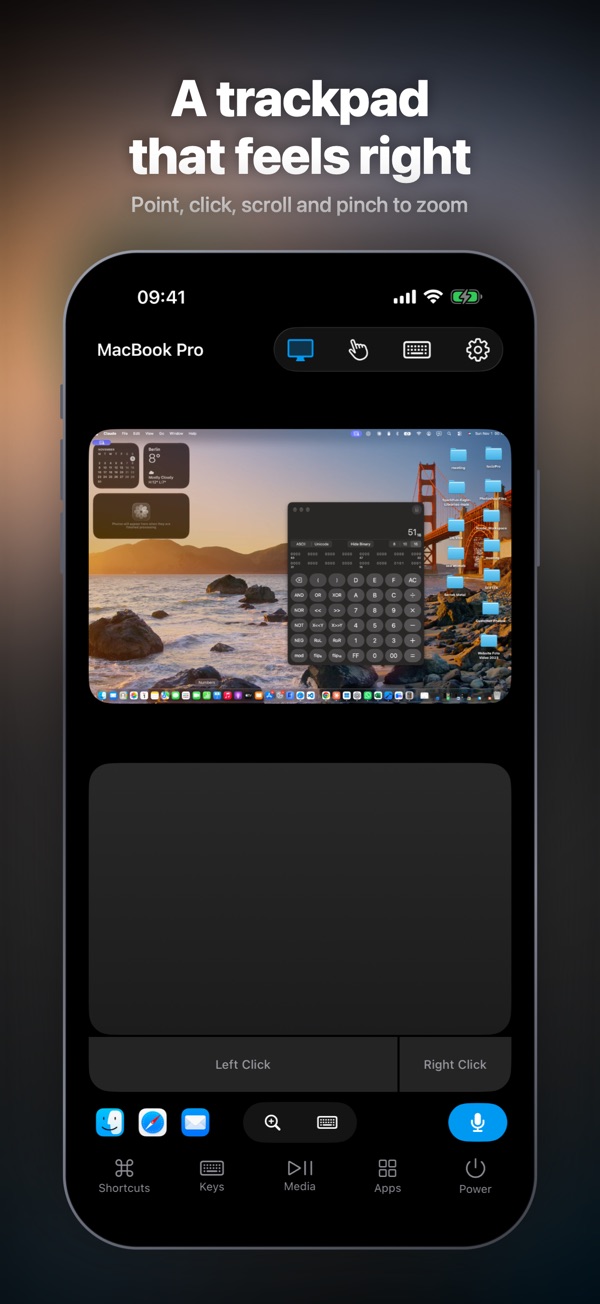
A proper trackpad
Pointer control, right-click, scrolling and gestures.
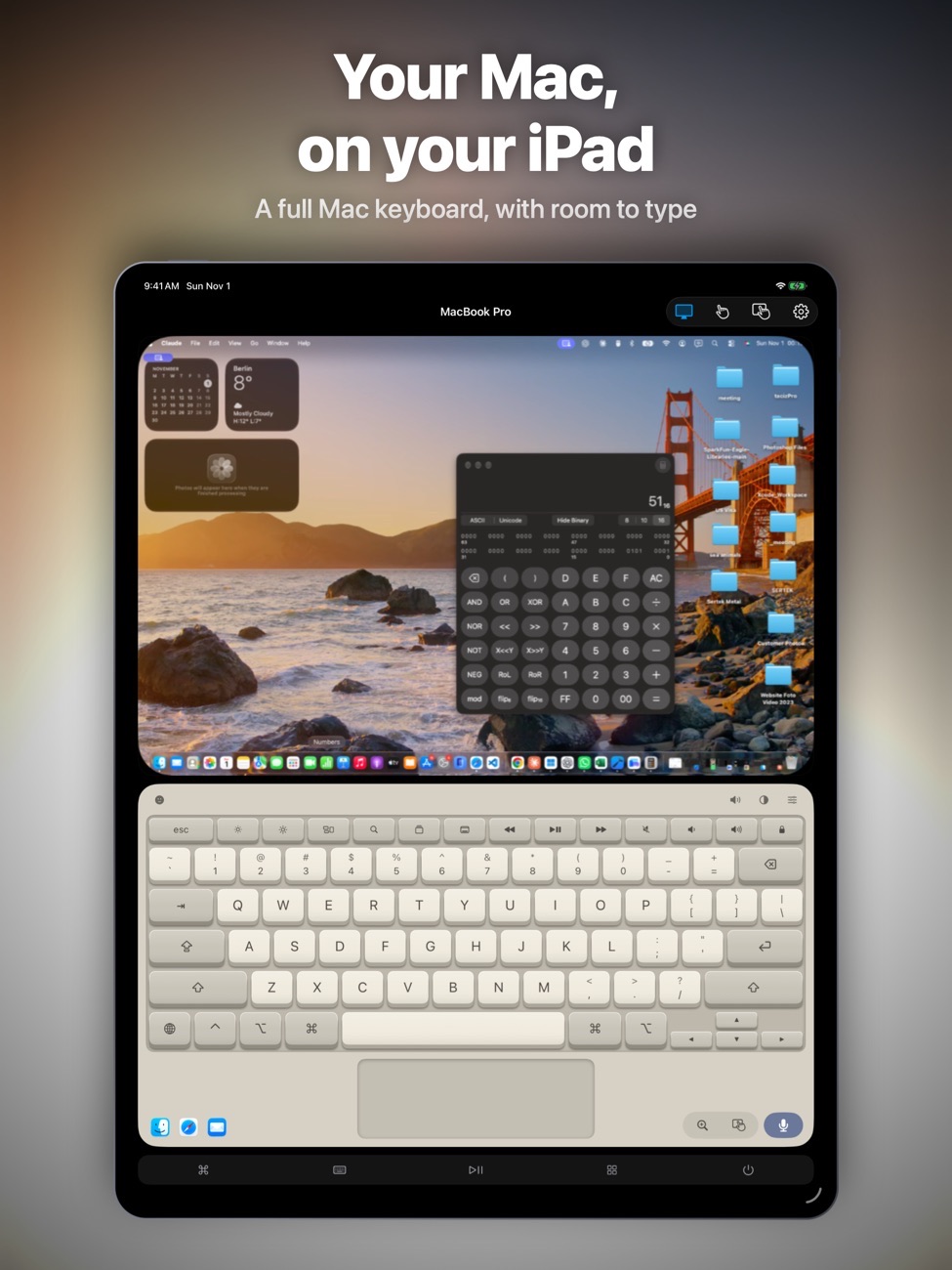
A keyboard that feels yours
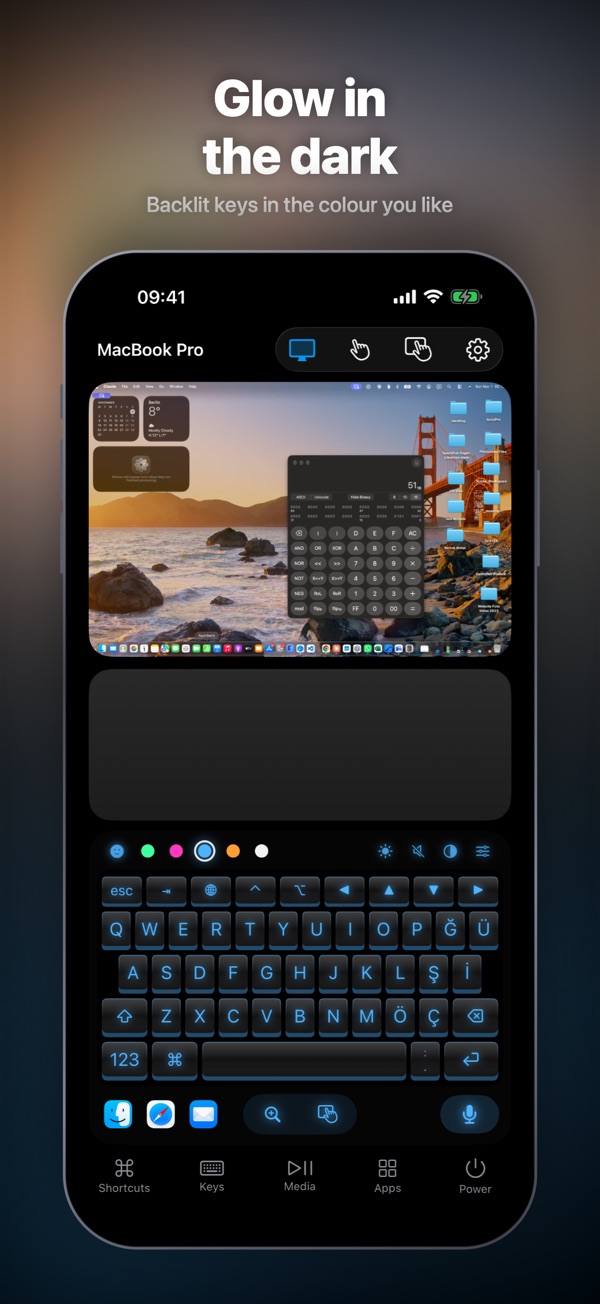
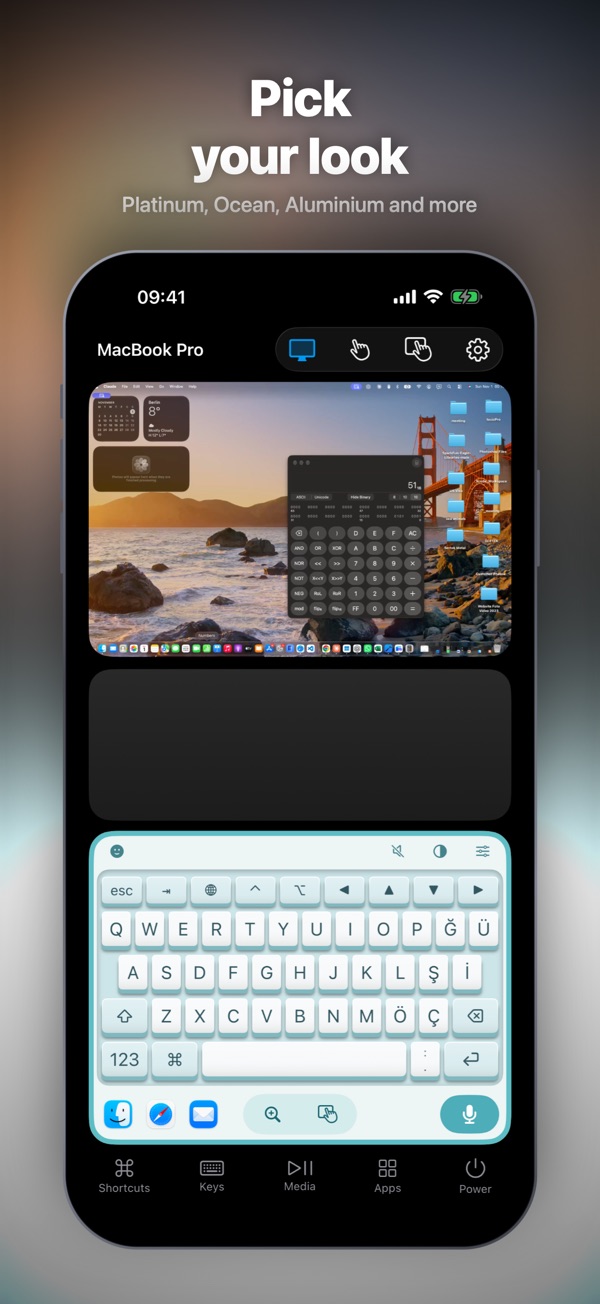
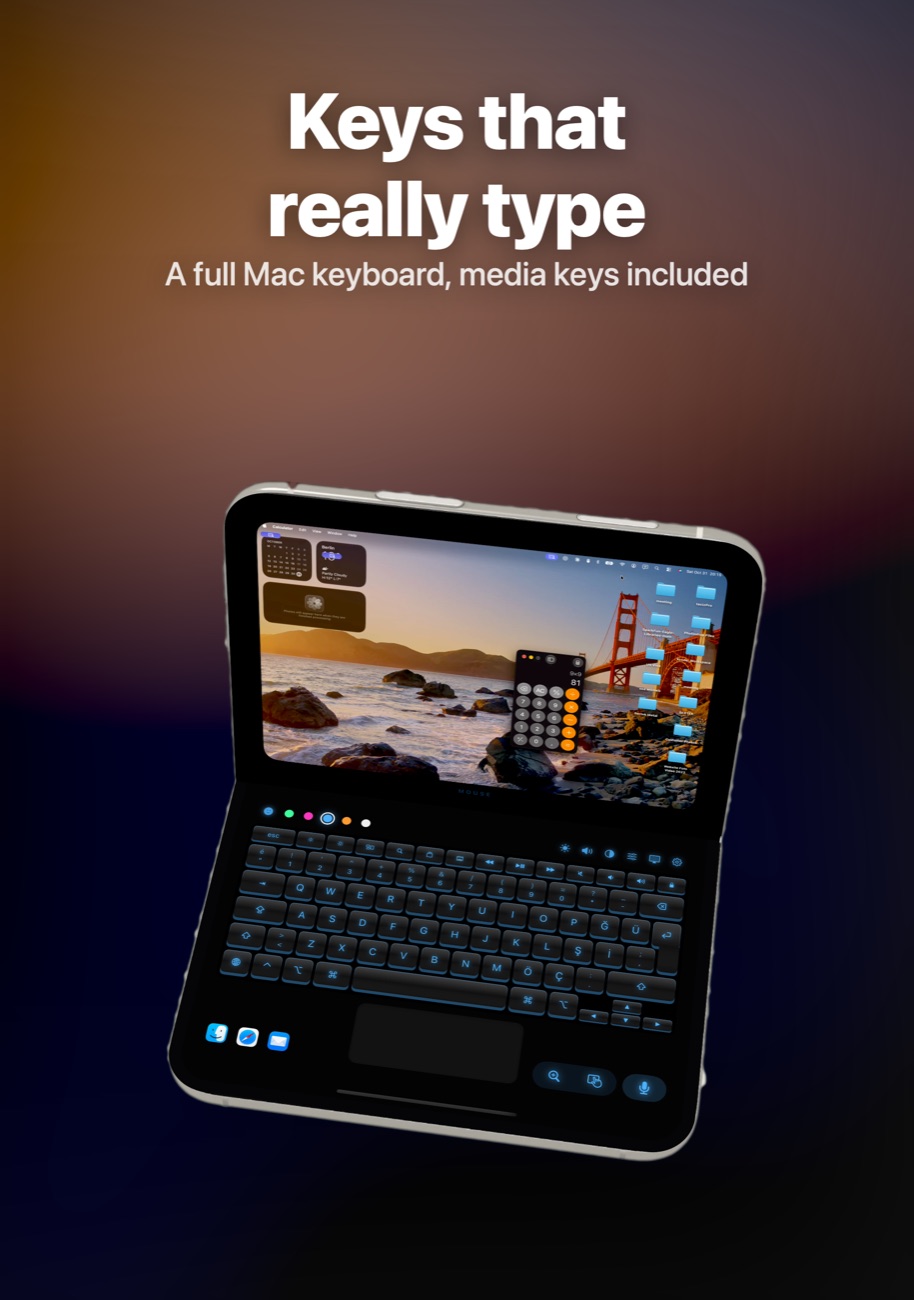
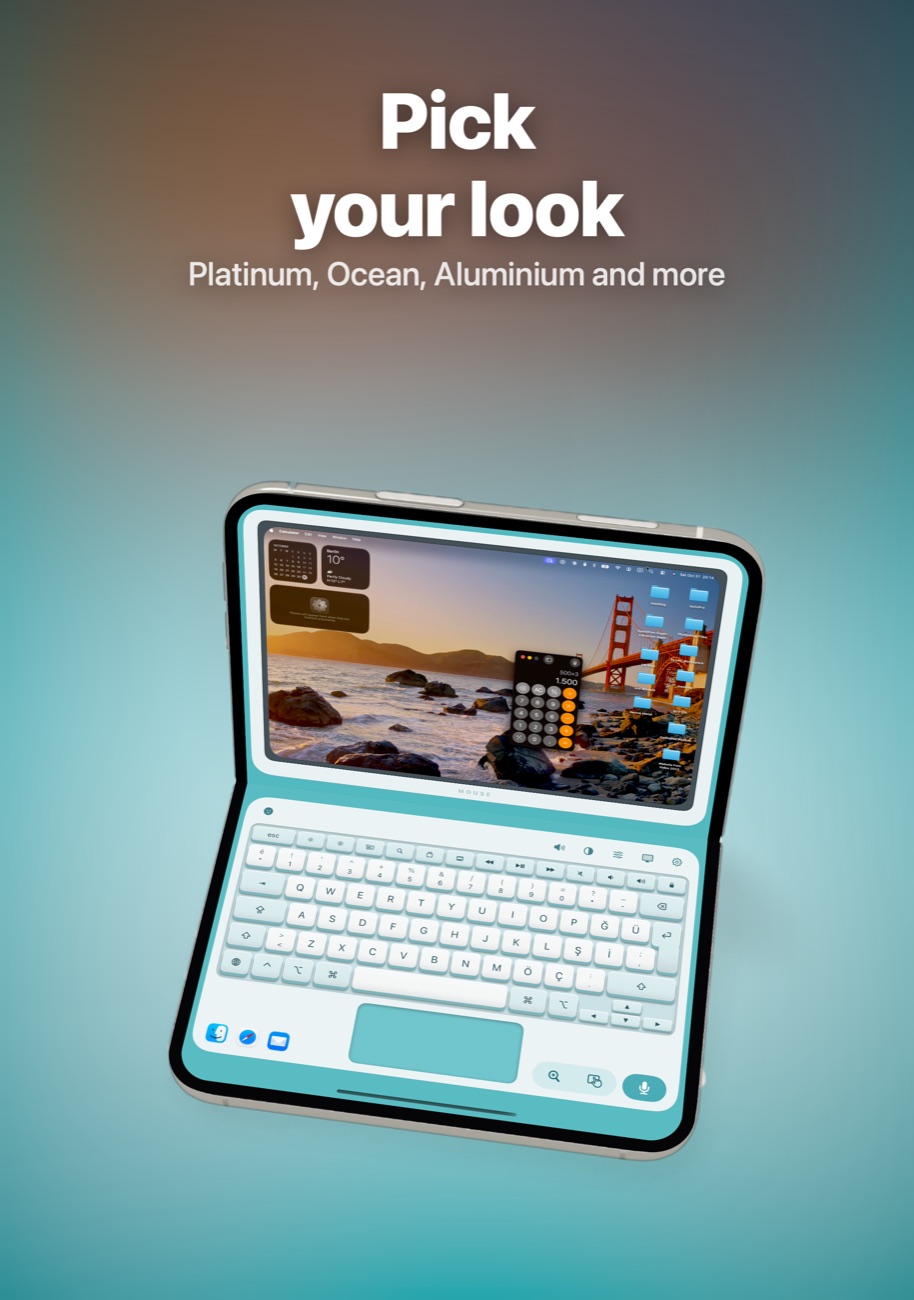
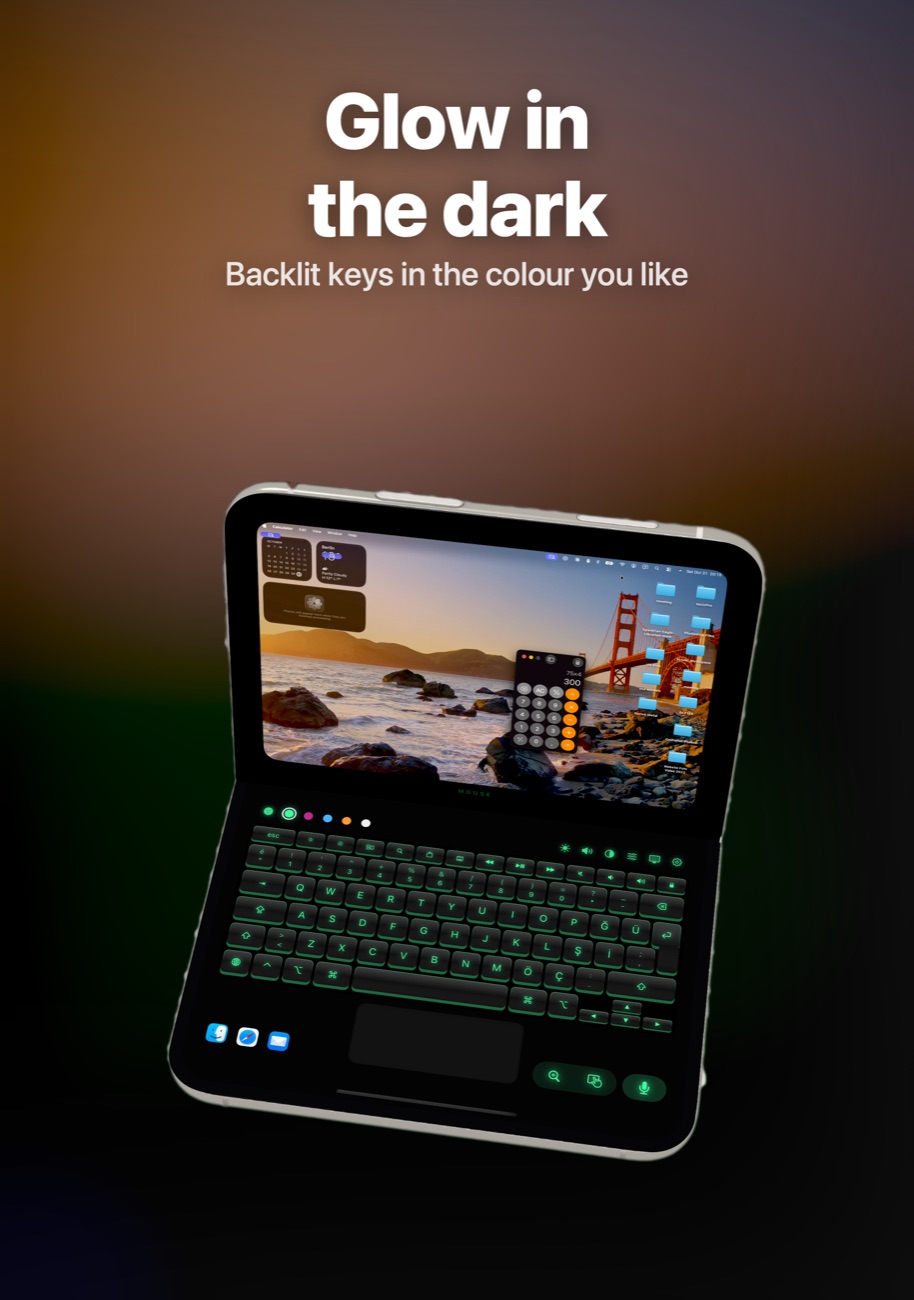
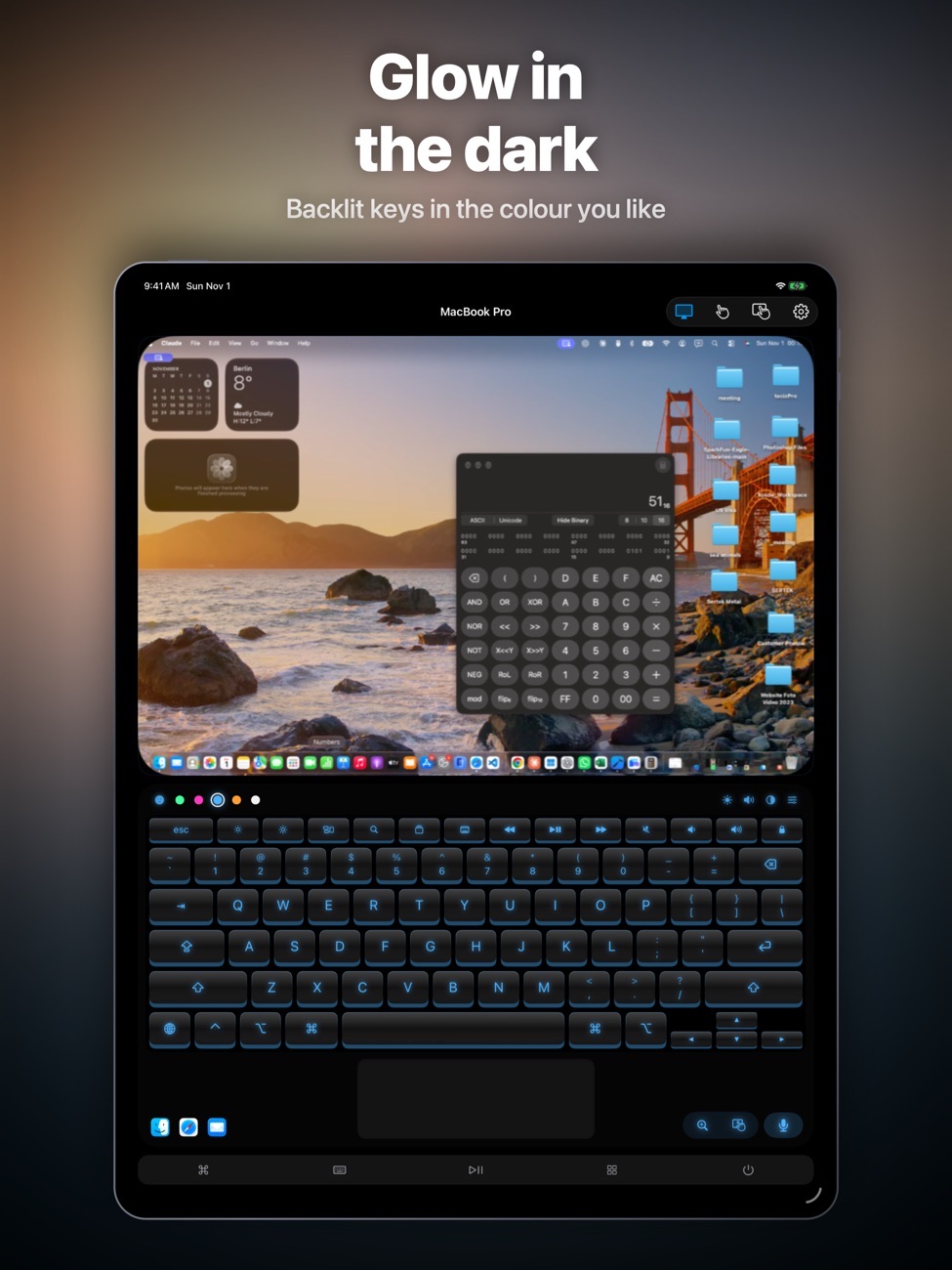
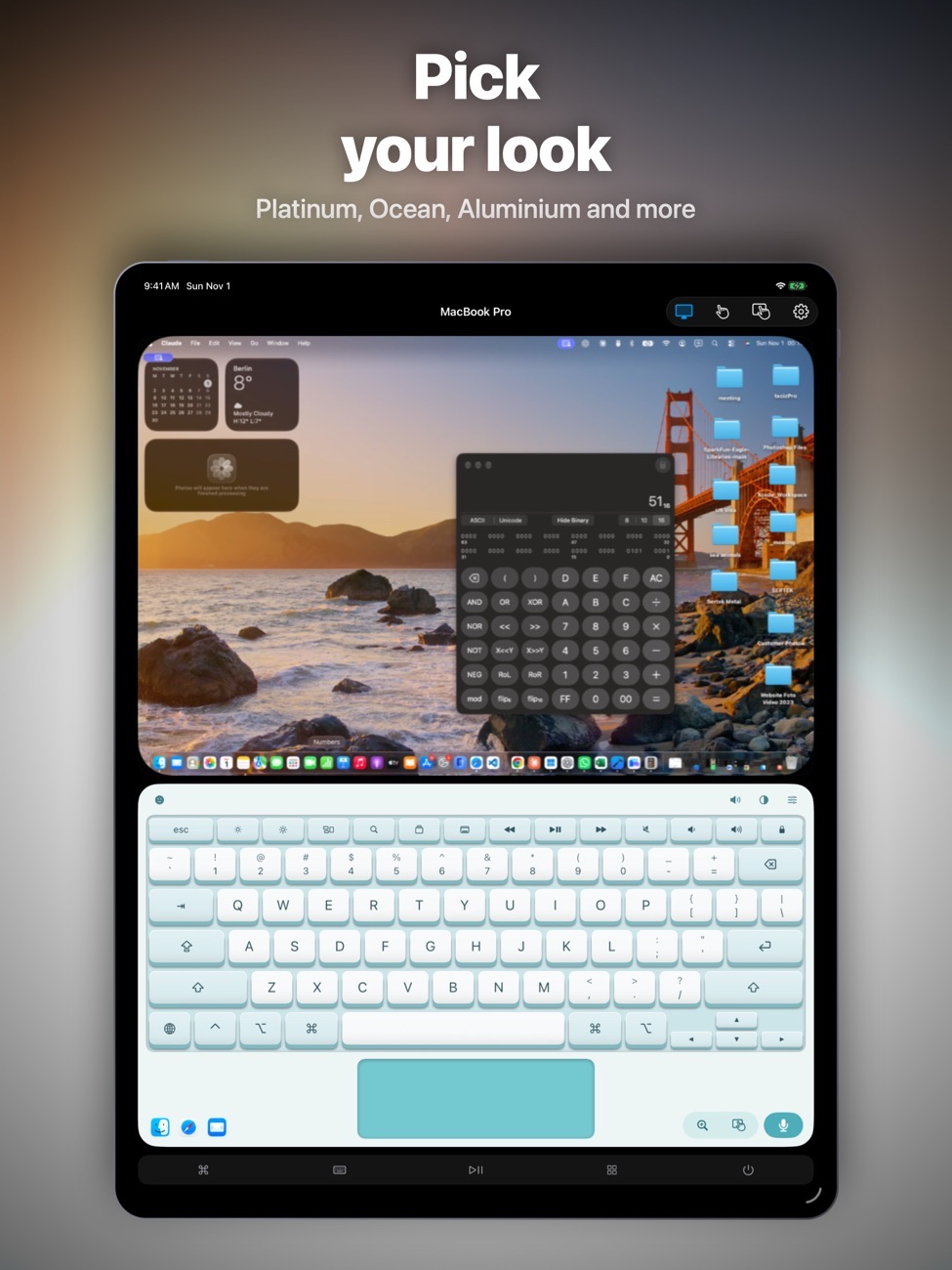
Full Mac-style keyboard with modifiers, arrows and F1–F12, in six styles: Dark, Light, Backlit, Platinum, Ocean and Aluminium.
Everyday shortcuts
Open apps from their icons and use copy, paste, undo, Spotlight and more.
Playback and power
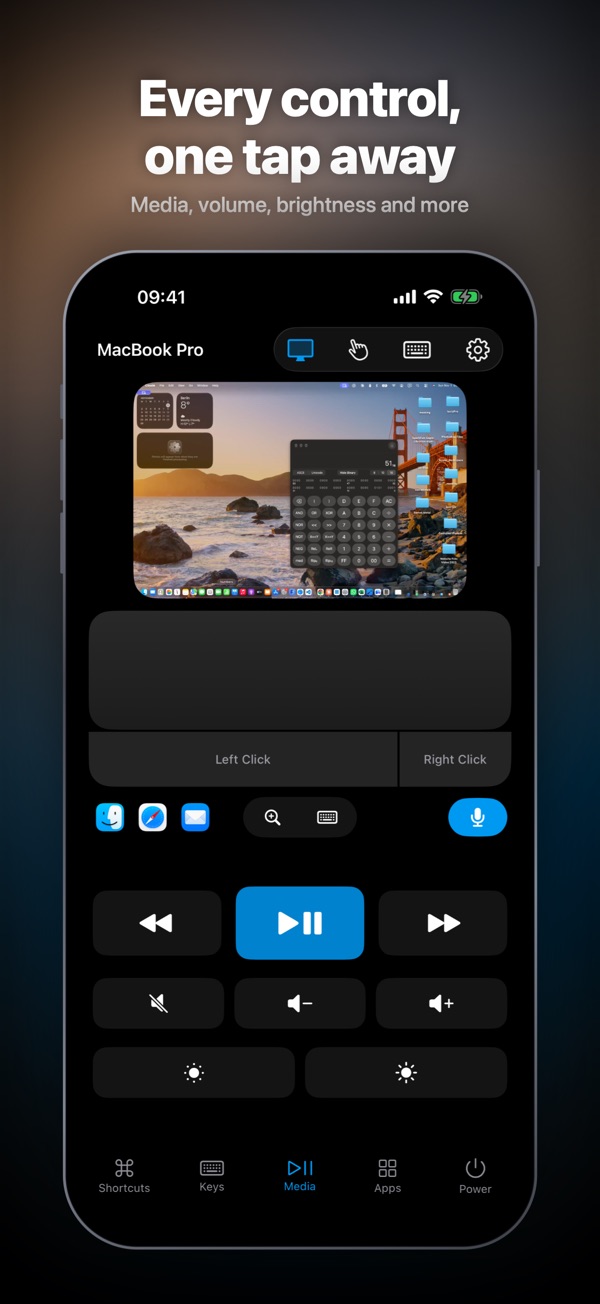
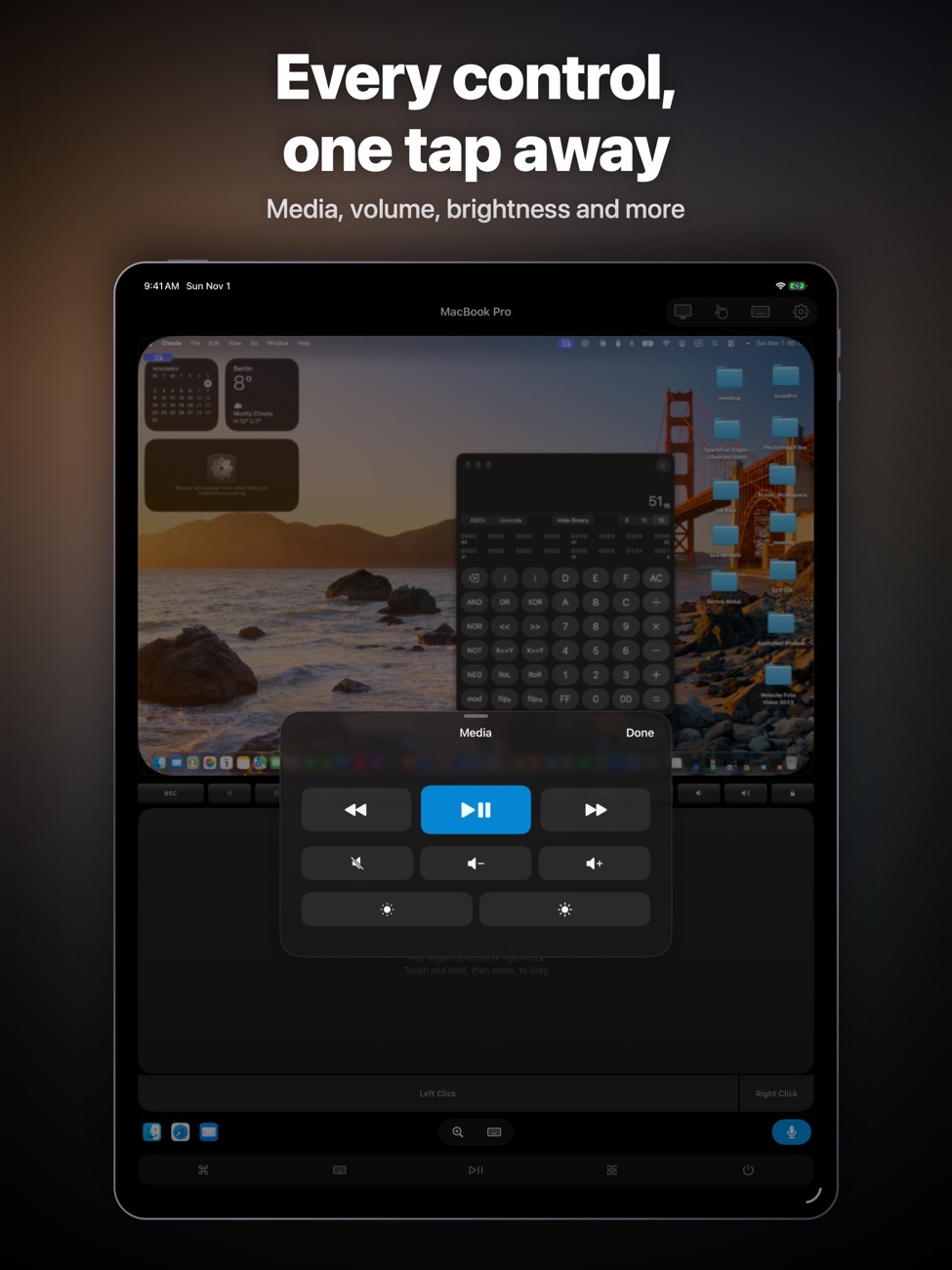
Control playback, volume and brightness. Lock or sleep the Mac, and restart or shut down when enabled.
Pair once
Confirm a matching code on both devices. The connection is encrypted, with no account and no ads.
Free Mac and PC companions
Download the free Mouse companion from this page: Mouse for Mac (macOS 13 or later, Apple silicon or Intel) or Mouse for Windows (Windows 10 or 11, 64-bit).
Get Mouse for Mac
The iPhone app needs this small helper running on your Mac. It’s free, signed with our Apple Developer ID and checked by Apple.
Download for Mac- Download and openOpen Mouse-for-Mac.dmg and drag Mouse into your Applications folder.
- Allow accessOpen Mouse. Allow Accessibility so it can move the pointer and type, and Screen Recording if you want to see the Mac's screen on your iPhone.
- Pair your iPhonePut both on the same Wi-Fi, pick your Mac in the iPhone app and confirm the matching code.
SHA-256: 6b1d572a5d18ba19ba916110957aacba82cf6016e9aa03bb85554de3f038e000
Get Mouse for Windows
The iPhone app needs this small helper running on your PC. It’s free, and it installs for your user account only, with no administrator rights needed.
Download for WindowsTo update, download and open the newer version. To uninstall, go to Settings › Apps › Mouse for Windows.
- Download and openOpen Mouse-for-Windows.exe. If Windows shows “Windows protected your PC”, click More info, then Run anyway. Mouse installs itself and appears in the notification area next to the clock.
- Allow accessWhen Windows Defender Firewall asks, allow Mouse on private networks. Your Wi-Fi should be set to Private in Windows network settings.
- Pair your iPhonePut both on the same Wi-Fi, pick your PC in the iPhone app and confirm the matching code.
SHA-256: 77f305b2cea2f6043d71407edf128203c179d92213f7564cfd8475a4ae232c41
Screenshots
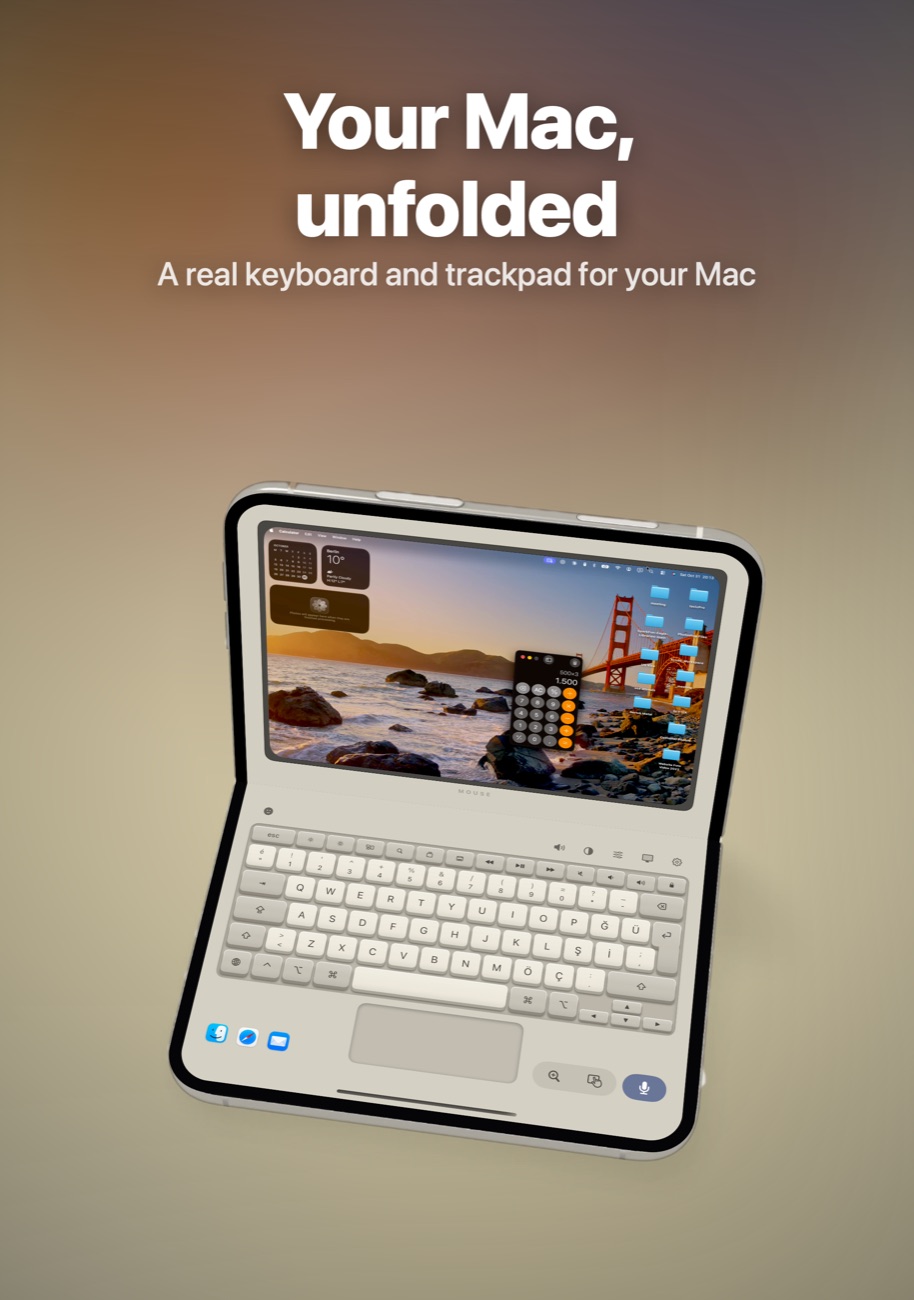
Smart Mouse & Keyboard on iPhone Duo, iPhone and iPad.
Is it right for you?
An honest look at who Smart Mouse & Keyboard is made for.
Great for
- A Mac connected to a TV
- Presentations and media control
- Typing from the sofa
Look elsewhere if you need
- Controlling a computer over the internet (same Wi-Fi only)
- Linux computers and Chromebooks
Details
- Developer
- Sensonet
- Price
- $2.99
- Category
- Utilities
- Version
- 2.1 · updated 2026-11-03
- Requires
- iOS 17.0 or later
- Languages
- 16
- Size
- 3 MB
- Age rating
- 4+
Privacy
The connection between your device and computer is encrypted. No account and no ads.
Questions
How do I use my iPhone as a mouse for Mac?
Download the free Mouse companion from this page and install it on your Mac, put both on the same Wi-Fi, pick your Mac in the app and confirm the pairing code. Allow Accessibility on the Mac for input control.
How do I use my iPhone as a mouse for a Windows PC?
Download Mouse for Windows from this page and open it on your PC, allow it through Windows Defender Firewall on private networks, then pick your PC in the iPhone app and confirm the pairing code.
Can I see my Mac's screen on my iPhone?
Yes. Allow Screen Recording in the Mac companion and the live screen appears in the app.
Does it work with Windows?
Yes. Install the free Mouse for Windows on your PC (Windows 10 or 11, 64-bit). You get the trackpad, a keyboard with Ctrl, Alt and Windows keys, Windows shortcuts, media keys, app launching, power controls and a live view of the PC's screen.
Where do I download the Windows app?
Right here on this page. Mouse for Windows is free and installs for your user account without administrator rights. It isn't code-signed yet, so Windows may show a SmartScreen warning the first time you open it: click More info, then Run anyway.
Where do I download the Mac app?
Right here on this page. Mouse for Mac is free, signed with our Apple Developer ID and checked by Apple, and runs on Apple silicon and Intel Macs.
Smart Mouse & Keyboard on iPhone Duo
It’s one of our picks in our guide to the apps that make the most of Apple’s foldable. Read: The best iPhone Duo apps in 2027 →
More apps from Sensonet


Smart Mouse & Keyboard privacy policyPrivacy Policy — Smart Mouse & Keyboard · Effective date: 13 November 2026
In short: Smart Mouse & Keyboard does not collect, store or share any personal data. Your iPhone or iPad talks directly to your own Mac or PC over your local network. Nothing passes through our servers, because we don’t run any.
This policy covers the Smart Mouse & Keyboard app for iPhone and iPad and its free companions, Mouse for Mac and Mouse for Windows, published by Sensonet (“we”, “us”).
Information we collect
None. There are no accounts, no sign-in, no advertising, no analytics and no third-party tracking or crash-reporting software in the app or the companions. We do not receive your name, email address, location, device identifiers or usage data.
How the connection works
The iPhone app finds your computer on the same Wi-Fi network using Bonjour (local network discovery). The first time you connect, both devices show a matching code that you confirm. After that, the connection between your device and your computer is encrypted end to end. Pointer movements, clicks, keystrokes, shortcuts and media commands travel only between your two devices over your local network.
Live screen view
If you allow Screen Recording on your Mac (or use the screen view with Mouse for Windows), the companion app captures your computer’s screen and streams it, encrypted, to the paired iPhone or iPad so you can see it. The picture is shown live and is never recorded, saved or sent anywhere else.
Permissions the apps ask for
- Local Network (iPhone, iPad and Mac): to find and connect to your computer on your Wi-Fi network.
- Microphone and Speech Recognition (iPhone and iPad, optional): only after you tap the microphone button, to turn what you say into text and type it on your computer. On devices that support it, speech recognition runs entirely on the device. On older devices, Apple’s speech recognition service may process the audio under Apple’s privacy policy. We never receive the audio or the text.
- Face ID (iPhone and iPad, optional): to confirm it’s you before the app restarts, shuts down or logs out your computer. Face ID is handled by iOS; the app never sees your biometric data.
- Accessibility (Mac): so the companion can move the pointer, click and type for you.
- Screen Recording (Mac, optional): for the live screen view described above.
- Automation (Mac, optional): to restart, shut down or log out the Mac when you ask from your iPhone.
You can turn any of these off at any time in your device’s Settings or System Settings. The rest of the app keeps working.
Information stored on your devices
Each device keeps the pairing records it needs to reconnect securely, plus your preferences such as keyboard style and layout. On iPhone, iPad and Mac these are stored on the device; pairing keys are kept in the system’s secure storage. Mouse for Windows stores its pairings in %LocalAppData%\Mouse, protected by Windows, together with a local log file used for troubleshooting. None of this is sent to us. Deleting an app removes its data from that device.
Purchases
The iPhone and iPad app is a paid download handled by Apple through the App Store. We do not receive your payment details.
Children
The apps do not collect personal information from anyone, including children.
Changes to this policy
If the app’s data practices change, we will update this policy and its effective date before the change takes effect.
Contact
Questions about this policy or your privacy can be sent to info@theappverdict.com. If you email us, we receive your email address and whatever you choose to write, and we use it only to reply.
Published by Sensonet, the developer of Smart Mouse & Keyboard. This page is the current version of the policy.